
Anúncios
Your phone’s battery draining faster than you’d like? You’re not alone—millions of users struggle daily with poor battery performance and constant charging.


Battery anxiety has become a modern-day phenomenon. We’ve all experienced that sinking feeling when our phone hits 20% and we’re nowhere near a charger. But the good news is that with the right strategies and a few smart adjustments, you can significantly extend your device’s battery life and reduce how often you need to reach for that charging cable.
Anúncios
Whether you’re an Android enthusiast or an iPhone devotee, understanding how your battery works and what drains it most can transform your mobile experience. Let’s dive into proven methods that actually work—no gimmicks, just practical solutions backed by real-world testing. 🔋
Understanding What’s Really Draining Your Battery
Before you can optimize your battery, you need to know where the power is actually going. Modern smartphones come with built-in battery usage statistics that reveal which apps and features consume the most energy.
Anúncios
On Android devices, navigate to Settings > Battery > Battery Usage to see a detailed breakdown. iPhone users can find similar information under Settings > Battery. These reports typically show usage over the last 24 hours or even the past week, giving you valuable insights into your consumption patterns.
The biggest culprits are usually:
- Screen brightness and display time
- Background app activity and refresh
- Location services running constantly
- Push notifications from multiple apps
- Cellular data and WiFi scanning
- Processor-intensive games and streaming apps
Identifying these energy vampires is the first step toward meaningful improvement. You might be surprised to discover that an app you rarely use is consuming significant power in the background.
Display Settings: Your Biggest Opportunity for Savings ✨
The display is typically the single largest battery drain on any smartphone, often accounting for 30-50% of total power consumption. Fortunately, this also means it offers the greatest potential for optimization.
Start by reducing your screen brightness. While auto-brightness is convenient, it often keeps the screen brighter than necessary. Manually setting it to a comfortable but lower level can extend battery life by hours. Most people find that 40-60% brightness works well in indoor environments.
Screen timeout settings matter more than you might think. If your phone stays awake for two minutes after each interaction, that’s wasted power adding up throughout the day. Set your timeout to 30 seconds or even 15 seconds if you’re comfortable with that.
For OLED and AMOLED screens (found on most modern flagships), dark mode isn’t just aesthetic—it’s functional. These display technologies illuminate individual pixels, meaning black pixels are actually turned off. Using dark themes and wallpapers can reduce display power consumption by 15-30% depending on your usage patterns.
Refresh Rate Considerations
Many newer phones feature high refresh rate displays—90Hz, 120Hz, or even 144Hz. While these create wonderfully smooth scrolling and animations, they also demand more power. If battery life is your priority, switching to 60Hz can add significant runtime.
Some devices offer adaptive refresh rates that automatically adjust based on content. This represents a good compromise between performance and efficiency, reducing the refresh rate when you’re reading static content but ramping up for gaming or scrolling.
Managing Background Apps and Processes
Apps running in the background are silent battery killers. Even when you’re not actively using them, many applications continue checking for updates, refreshing content, and maintaining network connections.
Background app refresh is a convenient feature that keeps your apps updated with the latest information, but it comes at a cost. Disable it for apps that don’t need real-time updates. Do you really need your shopping apps refreshing when you’re not using them?
On Android, you can restrict background activity through Settings > Apps > [Select App] > Battery > Background restriction. iOS users should visit Settings > General > Background App Refresh and selectively disable apps that don’t require constant updating.
Force-closing apps frequently is actually counterproductive. Modern operating systems are designed to manage memory efficiently, and repeatedly closing and reopening apps can consume more power than leaving them in a suspended state. Trust the system to handle this unless an app is clearly misbehaving.
Location Services: Precision vs. Battery Life 📍
GPS and location services are among the most power-hungry features on your phone. While incredibly useful, having dozens of apps constantly tracking your location will devastate your battery.
Review which apps have location permissions and adjust accordingly. Many apps request “Always” access when “While Using” would suffice. Social media apps, for instance, rarely need constant location tracking.
Android offers granular control with options like “Allow all the time,” “Allow only while using the app,” and “Deny.” iOS provides similar choices: “Always,” “While Using,” “Ask Next Time,” and “Never.”
Consider disabling location-based features you don’t actively use, such as location-based suggestions, frequent locations tracking, and location-based ads. These conveniences come with a battery price tag that may not be worth paying.

Network Connectivity Optimization
Your phone’s constant search for network signals—cellular, WiFi, and Bluetooth—consumes substantial power, especially in areas with poor reception.
When you’re in a location with weak cellular signal, your phone works harder to maintain the connection, draining the battery faster. If you’re somewhere you know has poor reception and you don’t need immediate connectivity, switching to airplane mode can preserve significant battery life.
WiFi generally consumes less power than cellular data for transferring the same amount of information. However, having WiFi constantly scanning for networks when you’re mobile isn’t efficient. Disable WiFi scanning in location services settings to prevent this background activity.
Bluetooth has become much more efficient with recent versions of the protocol, particularly Bluetooth Low Energy (BLE). Still, if you’re not using wireless headphones or other connected devices, turning Bluetooth off will save some power.
Smart Network Switching
Some phones offer features that automatically switch between WiFi and mobile data based on connection quality. While convenient, this constant evaluation and switching can drain your battery. If battery life is critical, manually managing your connections might be more efficient.
Notification Management for Extended Runtime 🔔
Every notification that lights up your screen or vibrates your phone consumes power. With the average person receiving dozens or even hundreds of notifications daily, this adds up quickly.
Audit your notification settings ruthlessly. Do you really need to know instantly when someone likes your social media post? Probably not. Reserve notifications for truly important communications—messages from key contacts, calendar reminders, and critical app alerts.
Disable vibration for notifications when possible. The vibration motor uses more power than you might expect, and if your phone is already making a sound or lighting up, the vibration is often redundant.
Group notifications where possible. Instead of your phone waking up five times for five separate emails, having them arrive in a batch reduces screen wake events and saves battery.
Battery-Saving Modes and When to Use Them
Both Android and iOS offer built-in battery-saving modes that extend runtime by limiting background activity, reducing performance, and adjusting various settings. These aren’t just for emergencies—they can be strategic tools for everyday use.
Android’s Battery Saver (or Power Saving Mode on Samsung devices) typically activates at 20% but can be enabled manually anytime. It limits background activity, reduces visual effects, and may lower screen brightness and refresh rate.
iOS Low Power Mode (available from the battery section in Control Center or Settings) disables automatic downloads, reduces visual effects, and limits background app refresh. It can extend battery life by several hours when you need it most.
Consider enabling these modes proactively during long days when you know you’ll be away from chargers, rather than waiting until your battery is critically low.
Charging Habits That Preserve Long-Term Battery Health ⚡
Optimization isn’t just about today’s battery life—it’s also about maintaining capacity over the months and years you’ll use your device. Lithium-ion batteries degrade over time, but smart charging habits can slow this process.
Avoid letting your battery regularly drop to 0% or charging it to 100% constantly. The sweet spot for lithium-ion longevity is keeping your charge between 20% and 80%. While not always practical, staying within this range when possible reduces stress on the battery.
Heat is battery enemy number one. Never leave your phone in direct sunlight or hot cars, and remove thick cases while charging to allow heat dissipation. If your phone becomes noticeably warm during charging, consider using a slower charger or charging in a cooler environment.
Fast charging is convenient but generates more heat. For overnight charging or times when you’re not in a hurry, using a standard charger is gentler on your battery and will help maintain its capacity longer.
Wireless Charging Considerations
Wireless charging offers convenience but typically generates more heat than wired charging and is less efficient overall. If you use wireless charging frequently, ensure your phone has adequate ventilation and consider using it primarily when speed isn’t critical.
App-Specific Optimization Strategies
Certain types of apps are notorious battery drainers, and knowing how to manage them specifically can yield significant improvements.
Social media apps often top the battery usage charts. They constantly refresh feeds, autoplay videos, and track your activity. Disable autoplay for videos in your app settings, and consider checking these apps manually rather than allowing constant background refresh.
Streaming services—video and music—consume substantial power. Downloading content over WiFi for offline playback uses far less battery than streaming over cellular data. Pre-loading your playlist or downloading episodes before a long trip can make your battery last much longer.
Gaming apps are processor-intensive by nature. Lower graphics settings when available, reduce frame rates if the game allows it, and take regular breaks to let your device cool down. Gaming while charging is tempting but creates heat that degrades battery health over time.
System Updates and Battery Performance
Keeping your operating system and apps updated isn’t just about new features and security—updates often include battery optimization improvements. Developers continuously work to make their software more efficient.
That said, immediately after a major OS update, you might notice temporarily reduced battery life. This typically occurs because the system is re-indexing files, updating apps in the background, and optimizing for the new software. Give it a few days to settle before making judgments about battery performance.
Outdated apps can sometimes cause battery drain through inefficient code or compatibility issues with newer operating systems. Keeping everything updated ensures you’re getting the best possible performance.
Advanced Settings for Power Users 🛠️
For those willing to dig deeper, additional settings can squeeze out even more battery life, though some come with trade-offs in functionality or convenience.
Disable haptic feedback if you don’t find it essential. Every vibration consumes power, and if you’re receiving dozens of interactions daily, the cumulative effect is measurable.
Reduce or disable animated wallpapers and widgets. Live wallpapers might look impressive, but they constantly consume resources. Static wallpapers are far more efficient, especially dark ones on OLED screens.
Limit widget usage on your home screen. Each widget that displays updating information—weather, news, stocks—requires background data and processing. Keep only the widgets you actually reference regularly.
Developer options on Android offer additional controls like limiting background processes or adjusting animation scales. These require some technical knowledge but can provide fine-tuned control for experienced users.
When to Consider Battery Replacement
Even with perfect optimization and charging habits, batteries eventually degrade. After 500 full charge cycles (roughly 1.5-2 years for most users), lithium-ion batteries typically retain only 80% of their original capacity.
Check your battery health regularly. iOS users can find this under Settings > Battery > Battery Health. Android users may need third-party apps to get detailed battery health information, though some manufacturers include this in their settings.
If your battery health shows significant degradation (below 80%) and you’re planning to keep your device longer, professional battery replacement can restore performance to near-original levels. This is often more economical and environmentally friendly than replacing the entire device.
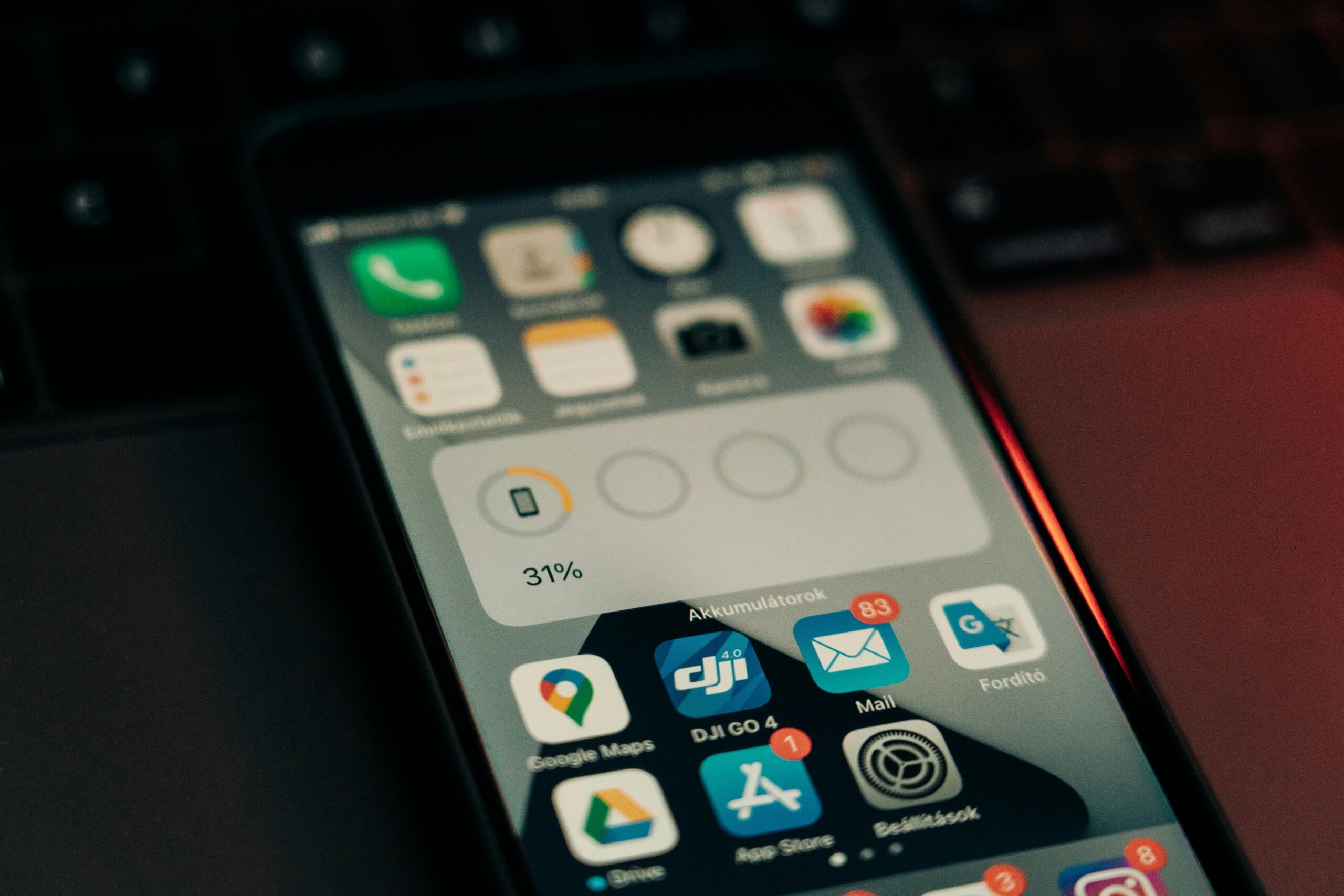
Creating Your Personal Battery Optimization Routine
The most effective approach combines several of these strategies into habits that work with your lifestyle rather than against it. You don’t need to implement every suggestion—even adopting a few key practices can dramatically improve your battery life.
Start with the high-impact changes: reduce screen brightness, limit background app refresh for non-essential apps, and review your location permissions. These three actions alone can add hours to your daily battery life.
Monitor your usage patterns for a week after making changes. Most phones provide historical battery data showing how your adjustments are impacting overall performance. This feedback helps you understand which optimizations provide the most value for your specific usage.
Remember that battery optimization is about finding balance. A phone with amazing battery life that’s stripped of all the features you love isn’t particularly useful. The goal is maximizing battery performance while maintaining the functionality that matters to you.
With consistent attention to these practices, you’ll find yourself reaching for the charger less frequently, experiencing less battery anxiety, and potentially extending the overall lifespan of your device. Your smartphone is a powerful tool—these optimizations ensure it’s ready when you need it most. 🚀
